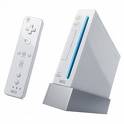
1. Press the home button on the main menu. Next, click on the controller image. You can adjust the Wii-mote volume and rumble functions.
2. Hold A and B down and you can move the windows on the main menu around.
3. Want your plain-looking Wii to have some style? Add a blue light around you CD drive anytime the console is on by doing the following:
Go to your email from the home menu, and add your personal computer email address to your address book. Wait ~1 hour for the email (mine took at least this long) Reply to the email from your computer. In a few minutes, you will have an email waiting for you on your Wii. Don’t read it! As long as it remains new, you have a pretty blue light!
4. While your Wii is powered down you can press any button on your Wiimote and lights will flash. The number of lights flashing is the amount of charge left in your battery (1 is least charge, 4 is most charge).
5. Email A Wii: You can email any Wii that you know the Friend code for. The Email address will be w(Wii Number here)@wii.com. For Example: w123456789012@wii.com.
6. In order to add someone to your friend’s list you BOTH have to enter each other’s Number ID and Console Nickname to be able to send messages and Mii’s.
7. When looking at your messages press A and B and you can move the messages around. If you have a lot of messages like me then you can arrange them in this manner or you can just delete them.
8. Extra Parts: There are two parts to the Wii in your box that you may either not find, or never know what they are. The first is a Clear Disc piece. This piece fits under your Wii stand to stabilize its balance. The second is a Small (1″ - 1.5″) plastic Piece. This piece is the stand for the Sensor bar. It puts some distance between your TV and the bar. In theory, that should give you a better angle reception.
9. Get Miis in your parade: Setting your Miis to Mingle and having your friends do the same thing will soon have Miis walking around in your parade. Your friends’ Miis will wonder over to your console and parade around, so long as they are set to Mingle. You can then grab them and send them to your Plaza so you have a copy.
10. In the Wii menus, turn your wrist and the hand cursor will also turn.
11. When you purchase a virtual console title and Mario runs across the screen, if you happen to get Fire Flower Mario, you can shoot fireballs with the A button.
12. If you go to the Channel section in your menu you can choose to save Virtual Console games on a SD card.
13. Wii Video 9 is a free video conversion application developed by Red Kawa. It allows you to convert your computer video files (like avi, divx, mpeg, etc.) into the specific video formats that are playable on the Wii.
Wii Video 9 can also be combined with Videora, another software application, and together they can let you automatically download and convert video for your Wii using BitTorrent and RSS technology.
Game related:
14. Get rid of Generic Teammates/Spectators: The Wii will automatically use the other Miis in your Plaza as teammates and spectators in certain Wii sports games. Create friends and family, and you can get rid of the generic Miis.
15. In Wii Sports Bowling, when you press up on the Directional Pad, it will zoom in on the lane. The zoom in sound is the exact same sound from Super Mario 64 anytime you moved the camera.
16. On hole 3 of Wii Sports Golf, there is a small section of fairway at about a 45 degree angle to the left from the tee box. It is a small patch surrounded by Out Of Bound-ness. If you can land your ball on there, you can easily make it on the green in 2, to Eagle the course.
17. In Zelda if you keep the game at the start screen for an extended period of time, it plays an extremely extended trailer that they didn’t show to the general public which is pretty cool.
18. In Zelda, the direction Link spins when doing a spin attack depends on which way you spin your nunchuck controller attachment.
19. You can skip cut-scenes in Zelda by hitting the - button.
Other topics:
20. Register and Extend Warranty: Register your Console on Nintendo.com, get a free 90 day extension to your warranty.
21. Get Free Nintendo Power: Register 3 Nintendo products on Nintendo.com, and get 3 months of Nintendo Power free.
Source
Showing posts with label Mods/Hacks. Show all posts
Showing posts with label Mods/Hacks. Show all posts
Sunday, March 1, 2009

Wednesday, June 4, 2008
Sunday, June 24, 2007
Tutorial: iTunes on the Wii (Free)
This tutorial will show you how to stream your iTunes music library to your Wii through the Opera browser. The Opera browser can be download to your Wii for free from the "Wii Shop Channel." This tutorial will work with both a Mac and a PC.
Things you'll need:
*Nintendo Wii with Opera Browser Installed (free from the shop channel)
*iTunes
*MyTunesRss (free)
Let's get started:
1. Make sure you have the latest version of iTunes installed on your computer.
2. Make sure you have the latest version of the Opera browser installed on your Wii.
3. Download and install MyTunesRss (select your operating system on the right hand side of the page and the download will begin).
Configuring MyTunes RSS (from their page):
1. When you start MyTunesRSS for the first time, it automatically starts searching a file named "iTunes Music Library.xml" in all directories inside your user home. You can cancel this process in case you want to select the file manually or you don't use iTunes at all.
2. To get started you need to configure at least one data source, i.e. either the "iTunes Music Library.xml" or at least one watch folder. The previously found "iTunes Music Library.xml" (if any was found) is already configured. To select your own music library source click the "Directories" tab and under the iTunes box click the "..." button. From here browse to where ever your Library.xml is stored on your computer. I also configured a watch folder. To do so click the "+" button next "Watch Folders" box. Point that window to look at your iTunes music folder.
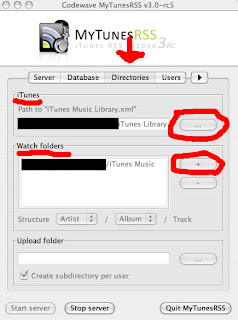
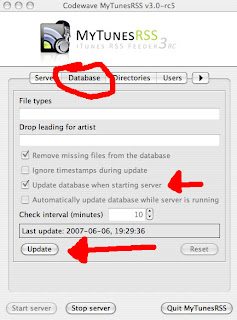
3. Then you need to do at least one initial database update. Under the "Database" tab you can trigger this update manually or you will have to check the option for doing this automatically when the server starts. You can also configure automatic updates at fixed intervals while the server is running.
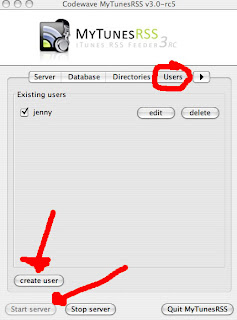
4. Now you need at least one user. Go to the user management tab and create a new user. Enter a username and password and check the permissions for the user. You should start with a user with all permissions and no download and zip archive limit. (You will not be able to download music or videos to your Wii...I already tried)
5. After creating the user you can start the server. The server is started and MyTunesRSS checks if it is reachable and if there are any tracks in the database. If your server is up and running, you can test the web interface.
6. Open a web browser on the same computer that is running MyTunesRSS and enter "http://127.0.0.1:8080" in the address line. After a few seconds you should see the login page. Enter the username and password for the user you just created and click the login button. You should see the portal page. MyTunesRSS is working correctly now.
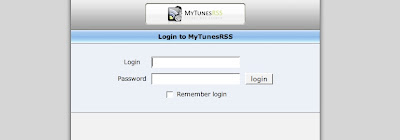
7.Before you leave MyTunesRss click the "Server" tab once more. Next click on the "Server Info" button. When the pop window appears look in the "Internal Addresses" window. Write one of them down (in my case it will be "http://192.168.10.147:8080" - see picture below).
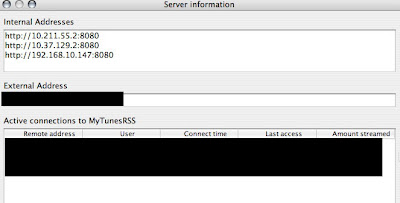
Configuring the Wii:
1. Load the "Internet Channel"
2. Click on the "WWW" icon
3. Enter in the IP address you wrote down in step 8 of "Configuring MyTunes RSS " into the address bar. In my case it was "http://192.168.10.147:8080"
4. Enter the username and password for the user you created earlier and click the log in button (I also clicked "Remember Me"). You should see a portal page. Congratulations you can now stream your iTunes music to your Wii!!!
*I also saved the ip address "http://192.168.10.147:8080" to my favorites and renamed it "iTunes" for easier access. If you chose to remember your username and password earlier, every time you click on your new iTunes favorite item you will be automatically logged into your iTunes library for instant browsing.
Retrieved from:
Things you'll need:
*Nintendo Wii with Opera Browser Installed (free from the shop channel)
*iTunes
*MyTunesRss (free)
Let's get started:
1. Make sure you have the latest version of iTunes installed on your computer.
2. Make sure you have the latest version of the Opera browser installed on your Wii.
3. Download and install MyTunesRss (select your operating system on the right hand side of the page and the download will begin).
Configuring MyTunes RSS (from their page):
1. When you start MyTunesRSS for the first time, it automatically starts searching a file named "iTunes Music Library.xml" in all directories inside your user home. You can cancel this process in case you want to select the file manually or you don't use iTunes at all.
2. To get started you need to configure at least one data source, i.e. either the "iTunes Music Library.xml" or at least one watch folder. The previously found "iTunes Music Library.xml" (if any was found) is already configured. To select your own music library source click the "Directories" tab and under the iTunes box click the "..." button. From here browse to where ever your Library.xml is stored on your computer. I also configured a watch folder. To do so click the "+" button next "Watch Folders" box. Point that window to look at your iTunes music folder.
3. Then you need to do at least one initial database update. Under the "Database" tab you can trigger this update manually or you will have to check the option for doing this automatically when the server starts. You can also configure automatic updates at fixed intervals while the server is running.
4. Now you need at least one user. Go to the user management tab and create a new user. Enter a username and password and check the permissions for the user. You should start with a user with all permissions and no download and zip archive limit. (You will not be able to download music or videos to your Wii...I already tried)
5. After creating the user you can start the server. The server is started and MyTunesRSS checks if it is reachable and if there are any tracks in the database. If your server is up and running, you can test the web interface.
6. Open a web browser on the same computer that is running MyTunesRSS and enter "http://127.0.0.1:8080" in the address line. After a few seconds you should see the login page. Enter the username and password for the user you just created and click the login button. You should see the portal page. MyTunesRSS is working correctly now.
7.Before you leave MyTunesRss click the "Server" tab once more. Next click on the "Server Info" button. When the pop window appears look in the "Internal Addresses" window. Write one of them down (in my case it will be "http://192.168.10.147:8080" - see picture below).
Configuring the Wii:
1. Load the "Internet Channel"
2. Click on the "WWW" icon
3. Enter in the IP address you wrote down in step 8 of "Configuring MyTunes RSS " into the address bar. In my case it was "http://192.168.10.147:8080"
4. Enter the username and password for the user you created earlier and click the log in button (I also clicked "Remember Me"). You should see a portal page. Congratulations you can now stream your iTunes music to your Wii!!!
*I also saved the ip address "http://192.168.10.147:8080" to my favorites and renamed it "iTunes" for easier access. If you chose to remember your username and password earlier, every time you click on your new iTunes favorite item you will be automatically logged into your iTunes library for instant browsing.
Retrieved from:
Wednesday, January 3, 2007
Music on your Wii

The social streaming music service, Finetune, has created a Wii friendly interface that looks and works really great. Listen to featured playlists, search artist names or tags on the “radio” and create a profile on a PC and then use the Wii to play your playlist or find similar artists.
The interface is absolutely amazing, one of the best I’ve seen for the Wii browser. From the rollovers to the iTunes 7 like 3D album view.
Retrieved from:Wiinintendo.net
Monday, January 1, 2007
Wii sports tips
These tips and tricks come from our own observations or items we have found on the ‘net. So check them out and let us know via our Forums new ones you have discovered or if you know any we missed:
Bowling
* If you position yourself far enough to the left and aim towards the opponents lane, you can knock down their pins. If you hit any of their pins it counts toward your score!
# The bowling ball seems to go much straighter if you release it high in the air.
# Change bowling ball color: As The screen is fading to black for bowling, hold down the control pad until it fades to bowling for these colors:
Code Effect
Control Pad Up Blue Ball
Control Pad Right Gold Ball
Control Pad Down Green Ball
Control Pad Left Red Ball
* Scare the crowds while bowling: Start the regular motion for bowling and let go on the back swing. The ball will fly backwards and the crowd will scream and jump.
* Get a Strike on the 91 Pin lane: In training mode you can get a strike on the 91 pin lane by rolling the ball along either the left or right rail all the way to the end. This will trigger an explosion and all the pins will fall down adding 182 (91 * 2) to your score.
Boxing
Here is a list of control motions for Wii Boxing (from GameSpot Forums posting):
High Guard: Hold Wiimote and Nunchuck vertically, then tilt both controllers inward toward your body to cover face.
Mid Guard: Hold Wiimote and Nunchuck parallel to ground, then tilt both controllers inward if still not covering center of body.
Left Dodge: Hold Wiimote and Nunchuck vertically, then tilt both controllers to your left.
Right Dodge: Hold Wiimote and Nunchuck vertically, then tilt both controllers to your right.
Right High Jab: Hold Wiimote vertically, with controls facing yourself, and jerk it forward with the wrist. Helps to keep arm stationary, and just let the Wiimote fall forward.
Right Mid Jab: Hold Wiimote parallel to ground, and jerk downward. Again, keep arm stationary and just push Wiimote downward with wrist.
Right High Hook: Hold Wiimote vertically, with controls facing yourself, and rotate it quickly to the left, as in this (please forgive my ASCII art):
BEFORE:
____
| D |
| A |
| 1 |
| 2 |
AFTER:
___________
|D A 1 2|
Right Uppercut: Hold Wiimote parallel to ground, and then jerk upward. It’s the exact opposite movement from the Right Mid Jab.
Right Low Hook: Hold Wiimote parallel to ground, but turn it 90 degrees COUNTER-CLOCKWISE so that the face of the Wiimote is looking out to your left, then jerk it in the direction of the face of the controller. It’s exactly like the right uppercut, except the entire motion is rotated to the left 90 degrees.
Left High Jab: Hold Nunchuck up vertically so that the analog stick is facing you, and then jerk it forward. Just like Right High Jab.
Left Mid Jab: Hold Nunchuck parallel to ground, and jerk it downward. Just like the Right Mid Jab.
Left Uppercut: Hold Nunchuck parallel to ground, and jerk it upward. Just like Right Uppercut
Left Hook: Hold Nunchuck parallel to ground, but turn it 90 degrees CLOCKWISE so that the face of the controller is looking out to your right, then jerk it in direction of the face of controller. Basically just like the Right Mid Hook.
* Turn your Boxing Gloves Silver: After you’ve beaten the Grand Champion, Matt, in a boxing match you’ll be able to wear silver boxing gloves. To do so, hold (1) when the screen becomes black before a boxing match.
Golf
* Put better: Press (1) on the controller to see the break of the green and use this to line up your putt. You can also press (2) to get a lower, closer view of the green.
* Play Golf without maps or meters: To disable the power meter, map, and the wind speed indicator, press and hold (2), then make a selection at the “Select a Course” screen.
Baseball
* Pitch Underhand: While pitching, press 2 before throwing. To return to normal pitching press 1
Tennis
* Change the tennis court: To change the tennis court to the blue practice court, press and hold (2) at the warning screen that shows after selecting characters.
* Play Ping-Pong Tennis: You can place yourself on both sides of the net in a single player game and play against yourself, which is quite challenging. In addition, if you’re really masochistic, you can do a 4 player doubles with only you involved.
Retrieved from: http://www.workoutwithwii.com
Bowling
* If you position yourself far enough to the left and aim towards the opponents lane, you can knock down their pins. If you hit any of their pins it counts toward your score!
# The bowling ball seems to go much straighter if you release it high in the air.
# Change bowling ball color: As The screen is fading to black for bowling, hold down the control pad until it fades to bowling for these colors:
Code Effect
Control Pad Up Blue Ball
Control Pad Right Gold Ball
Control Pad Down Green Ball
Control Pad Left Red Ball
* Scare the crowds while bowling: Start the regular motion for bowling and let go on the back swing. The ball will fly backwards and the crowd will scream and jump.
* Get a Strike on the 91 Pin lane: In training mode you can get a strike on the 91 pin lane by rolling the ball along either the left or right rail all the way to the end. This will trigger an explosion and all the pins will fall down adding 182 (91 * 2) to your score.
Boxing
Here is a list of control motions for Wii Boxing (from GameSpot Forums posting):
High Guard: Hold Wiimote and Nunchuck vertically, then tilt both controllers inward toward your body to cover face.
Mid Guard: Hold Wiimote and Nunchuck parallel to ground, then tilt both controllers inward if still not covering center of body.
Left Dodge: Hold Wiimote and Nunchuck vertically, then tilt both controllers to your left.
Right Dodge: Hold Wiimote and Nunchuck vertically, then tilt both controllers to your right.
Right High Jab: Hold Wiimote vertically, with controls facing yourself, and jerk it forward with the wrist. Helps to keep arm stationary, and just let the Wiimote fall forward.
Right Mid Jab: Hold Wiimote parallel to ground, and jerk downward. Again, keep arm stationary and just push Wiimote downward with wrist.
Right High Hook: Hold Wiimote vertically, with controls facing yourself, and rotate it quickly to the left, as in this (please forgive my ASCII art):
BEFORE:
____
| D |
| A |
| 1 |
| 2 |
AFTER:
___________
|D A 1 2|
Right Uppercut: Hold Wiimote parallel to ground, and then jerk upward. It’s the exact opposite movement from the Right Mid Jab.
Right Low Hook: Hold Wiimote parallel to ground, but turn it 90 degrees COUNTER-CLOCKWISE so that the face of the Wiimote is looking out to your left, then jerk it in the direction of the face of the controller. It’s exactly like the right uppercut, except the entire motion is rotated to the left 90 degrees.
Left High Jab: Hold Nunchuck up vertically so that the analog stick is facing you, and then jerk it forward. Just like Right High Jab.
Left Mid Jab: Hold Nunchuck parallel to ground, and jerk it downward. Just like the Right Mid Jab.
Left Uppercut: Hold Nunchuck parallel to ground, and jerk it upward. Just like Right Uppercut
Left Hook: Hold Nunchuck parallel to ground, but turn it 90 degrees CLOCKWISE so that the face of the controller is looking out to your right, then jerk it in direction of the face of controller. Basically just like the Right Mid Hook.
* Turn your Boxing Gloves Silver: After you’ve beaten the Grand Champion, Matt, in a boxing match you’ll be able to wear silver boxing gloves. To do so, hold (1) when the screen becomes black before a boxing match.
Golf
* Put better: Press (1) on the controller to see the break of the green and use this to line up your putt. You can also press (2) to get a lower, closer view of the green.
* Play Golf without maps or meters: To disable the power meter, map, and the wind speed indicator, press and hold (2), then make a selection at the “Select a Course” screen.
Baseball
* Pitch Underhand: While pitching, press 2 before throwing. To return to normal pitching press 1
Tennis
* Change the tennis court: To change the tennis court to the blue practice court, press and hold (2) at the warning screen that shows after selecting characters.
* Play Ping-Pong Tennis: You can place yourself on both sides of the net in a single player game and play against yourself, which is quite challenging. In addition, if you’re really masochistic, you can do a 4 player doubles with only you involved.
Retrieved from: http://www.workoutwithwii.com
Tuesday, December 12, 2006
Wii Wireless Sensor Bar

# Uses Wii Standard 3-8 foot ideal range
# Setup and use in seconds with 1 button design
# On / Off switch with Red LED indicator
# 48+ hrs of gameplay battery life
# Adhesive strip on bottom for easy mounting
# Uses 9 Volt battery (extended life)
# Designed, produced, and tested in America!
# No more tripping over the cord!
MSRP: $24.99 + $5.99S&H
Your can order them from here: http://www.wirelesssensorbar.com/
Saturday, December 9, 2006
Tuesday, December 5, 2006
Wii runs GameCube homebrew

Using a variety of exploits, the homebrew community has finally struck gold and figured out how to get it all going on the Wii. With a SD card, Action Replay for the GameCube and SD card adapter for the GameCube, one can plug in their card into a computer, use some of that homebrew magic and get GameCube homebrew running on the console. Of course, this could very well be a problem for Nintendo if folks use this exploit to run emulators (they will and, more than likely, are), bypassing the Virtual Console to play any ROM they wish.
Retrieved from: Nintendowiifanboy.com
Wii-mote as a bluetooth mouse
A video showing someone using the Wii-mote as a mouse on a laptop. Some veiwers have indicated that you could also script it to go faster/slower, or for the lights to be on/off or do nothing.
A link to more details of original poster: LiquidIce's Nintendo Wii Hacks
Wednesday, November 29, 2006
NES and SNES Controller Adapters for Nintendo Wii
Check it out here: http://www.retrousb.com/wii.html
o Authenticity of original controllers with the simpilicity of Wii
o Plugs directly into the GameCube ports
o No drivers to install or update
o Use with any Virtual Console or GameCube game

Shipping Jan 2007: Add a NES port to your Wii! Use your finger memory and your own NES controller to play Virtual Console games. Authentic gameplay unmatched with other controllers. Get 2 or more RetroPorts to play multiplayer games with friends. Plugs directly into the GameCube ports on your Wii.

Shipping Q1 2007: Add a SNES port to your Wii! Use your own SNES controller to play Virtual Console games the way it was originally designed. Authentic gameplay unmatched with other controllers. Get 2 or more RetroPorts to play multiplayer games with friends.
o Authenticity of original controllers with the simpilicity of Wii
o Plugs directly into the GameCube ports
o No drivers to install or update
o Use with any Virtual Console or GameCube game
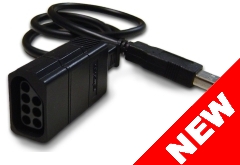
Shipping Jan 2007: Add a NES port to your Wii! Use your finger memory and your own NES controller to play Virtual Console games. Authentic gameplay unmatched with other controllers. Get 2 or more RetroPorts to play multiplayer games with friends. Plugs directly into the GameCube ports on your Wii.
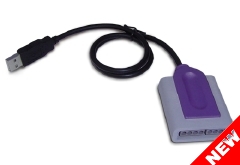
Shipping Q1 2007: Add a SNES port to your Wii! Use your own SNES controller to play Virtual Console games the way it was originally designed. Authentic gameplay unmatched with other controllers. Get 2 or more RetroPorts to play multiplayer games with friends.
Monday, November 27, 2006
Wii Skins

To show our love for the Wii, we developed exceptional Wii skins, with maximum coverage and a precision fit to avoid huge gaps between panels. Our premium thin materials cover both sides of the console, so it's gorgeous in or out of the stand.
More Wii Skins found here: www.decalgirl.com
Subscribe to:
Posts (Atom)